
Claude Code in Your Pocket — Dead Simple 60-Second Setup
Already have a way to access Claude from your phone? Ask yourself: does it cost money? Does it depend on a third-party server? If yes, keep reading.
TL;DR: Tailscale + Moshi = control your Mac's AI agent from your iPhone. Core setup takes under 60 seconds. No port forwarding, no complex networking, no VPS fees. Peer-to-peer, no middleman. (If you can already SSH to your Mac and know how to connect to it, you only need Moshi—15 seconds.)
Why This Setup Exists
You kick off a task with Claude Code, then step away. Grab coffee. Take a walk. Commute home.
But you want to stay in the loop. Check progress. Steer the direction. Give feedback before it goes too far down the wrong path.
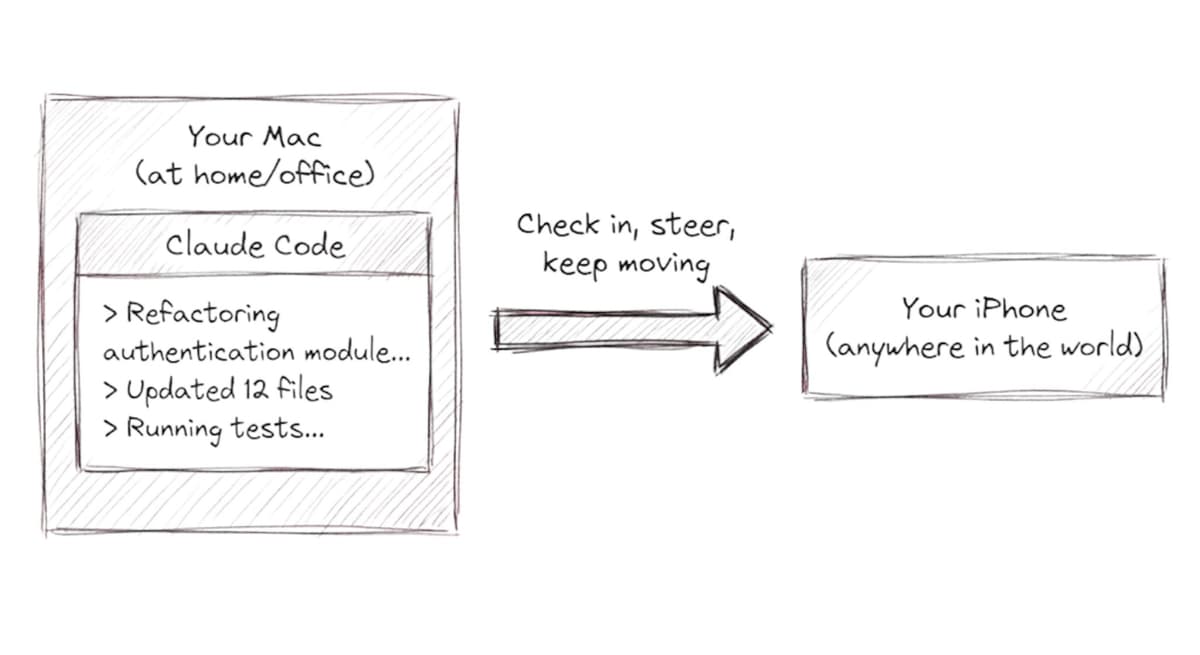
The solution: keep the agent running on your Mac, check in and course-correct from your phone
This guide walks through the setup step by step—optimized for simplicity without sacrificing security.
What You'll Need
Step 1: Enable Remote Login (10 seconds)
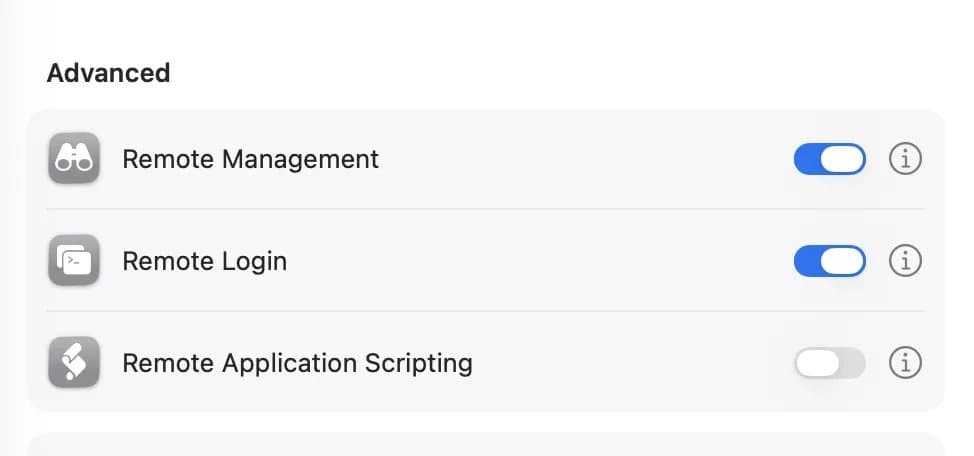
This starts the SSH server that Moshi connects to.
Step 2: Set Up Tailscale (35 seconds)
Tailscale creates a secure private network between your devices. No port forwarding, no exposing your Mac to the internet.
On your Mac:
textbrew install tailscale && sudo tailscale up --ssh
Get your Tailscale IP (you'll need this):
texttailscale ip
# Example output: 100.64.0.1
On your iPhone:
Done—your devices can now reach each other securely.
Tailscale is free for personal use (up to 100 devices).
Step 3: Set Up Moshi on Your iPhone (15 seconds)
Moshi is a native iOS terminal built on mosh, designed specifically for workflows like this.
Connect. You're in.
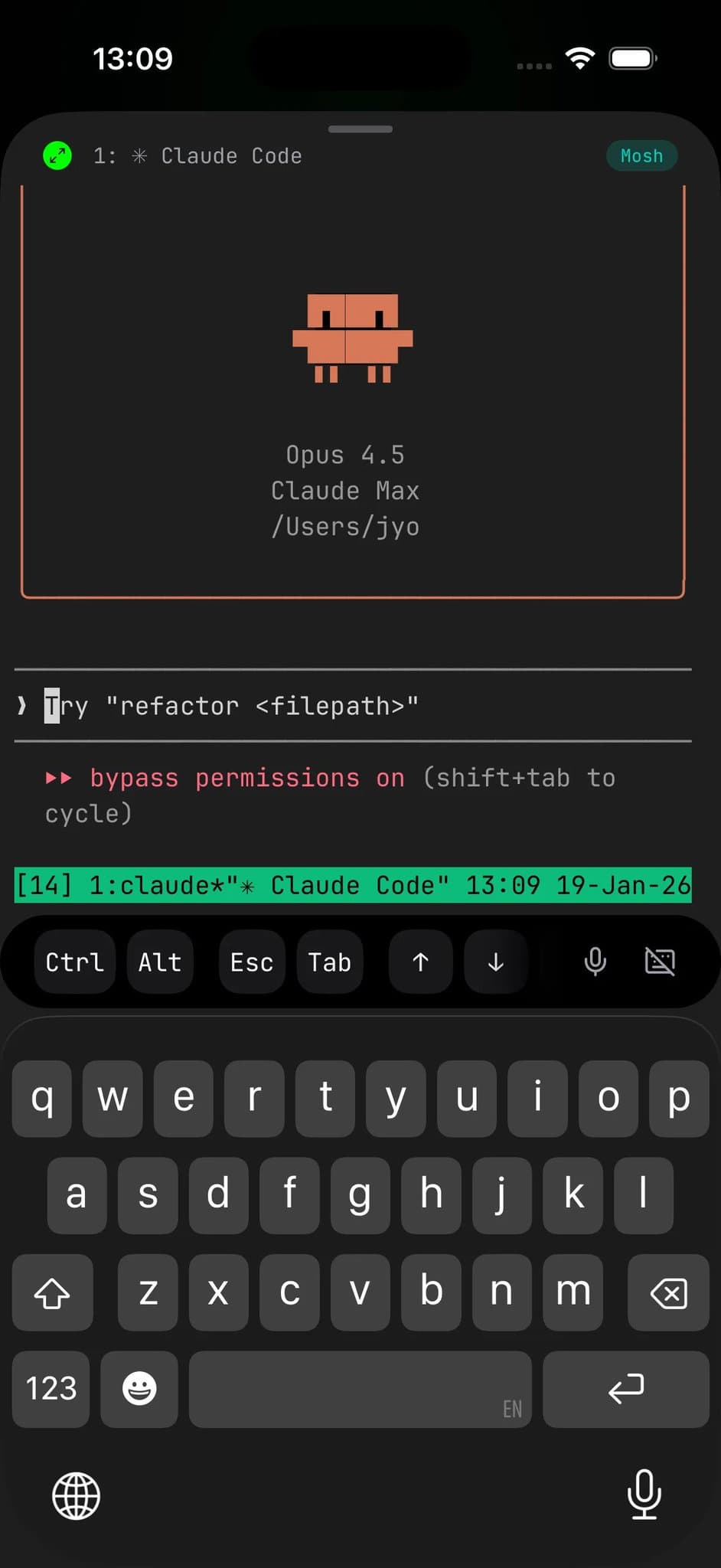
Using It: The Daily Workflow
Start Claude on your Mac
text$ claude
Connect from your iPhone
Open Moshi → tap your Mac → you're in.
That's it
Check progress, read output, give new instructions—all from your phone.
Note: With this minimal setup, if you close Moshi or your connection drops, you'll need to restart Claude. Want sessions that survive disconnects? See the optional tmux section below.
Push Notifications: Stay in the Loop
Configure Claude to ping your phone with progress updates.
Enable notifications in Moshi
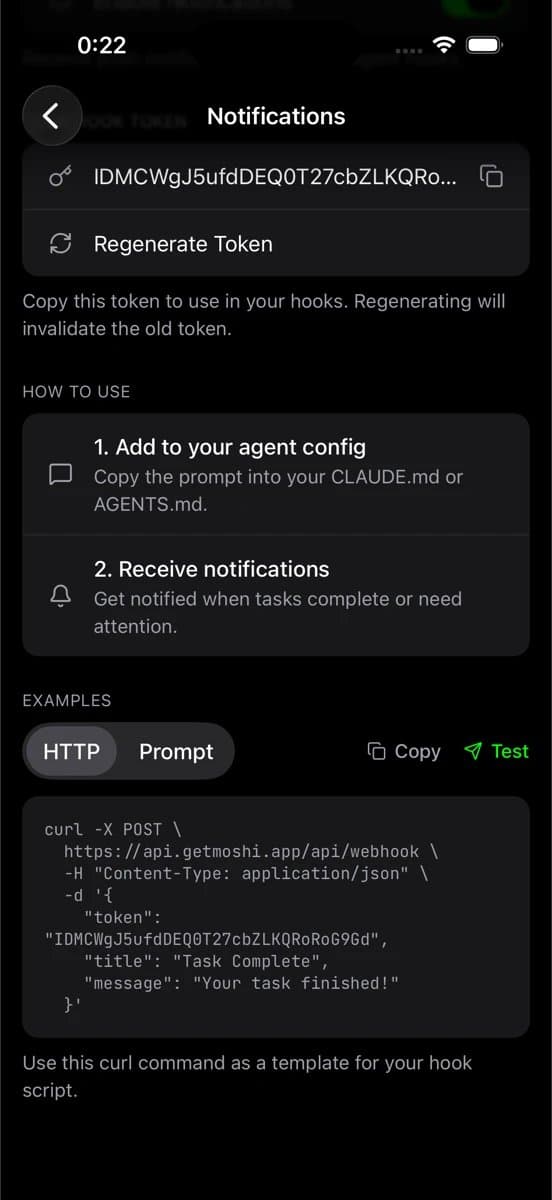
Tell Claude how to notify you
Add this to your project's CLAUDE.md:
markdown## Notifications

When you complete a task or hit a milestone, notify me:

curl -s -X POST https://api.getmoshi.app/api/webhook \
  -H "Content-Type: application/json" \
  -d '{"token": "YOUR_TOKEN", "title": "Status", "message": "Brief summary"}'
Replace YOUR_TOKEN with your Moshi webhook token.
Now you get updates on your iPhone and Apple Watch. Tap to jump straight into your session.
Optional: Add mosh + tmux for Persistent Sessions
We moved this to optional so we could claim "60-second setup." But honestly, this is how you'll want to run it.
The basic setup works, but has a limitation: close Moshi or lose your connection, and Claude stops. For long-running sessions, you want persistence.
Install mosh and tmux:
textbrew install mosh tmux
Tool What it does mosh Keeps your connection alive across network changes, sleep, WiFi → cellular tmux Keeps your session alive even when disconnected
Why mosh?
SSH dies when your network changes. Mosh uses UDP with state synchronization—switch networks, let your phone sleep, walk out of WiFi range, and you're still connected.
According to the mosh research paper, on networks with 29% packet loss, mosh reduced response times from 16.8 seconds to 0.33 seconds. That's a 50x improvement.
Why tmux?
Mosh keeps your connection alive. tmux keeps your session alive. Different things.
Close Moshi, your Mac restarts, whatever—Claude keeps running in tmux. Reconnect later and pick up where you left off.
It also gives you scrollback. Mosh alone has none (it only syncs visible screen state).
Using it
text# Start a named session
tmux new -s claude

# Run Claude inside
claude
Now you can disconnect anytime. Reconnect with:
tmux configuration (optional)
texttmux attach -t claude
Create ~/.tmux.conf:
textset -g history-limit 50000    # More scrollback
set -g mouse on               # Touch scrolling
set -g set-titles on          # Pass titles to Moshi
set -g set-titles-string "#S:#W"
Essential tmux commands
Keys Action
Moshi has a dedicated tmux shortcuts panel for these.
Optional: Prevent Sleep for Always-On Operation
If you want your Mac to stay awake indefinitely:
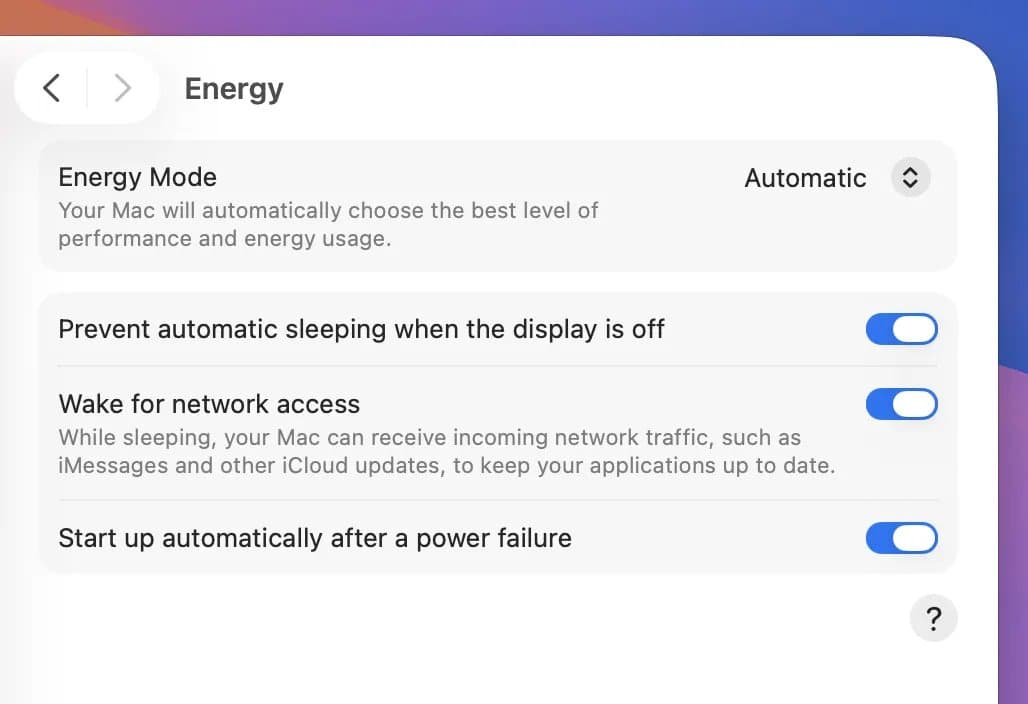
For one-off sessions without changing system settings, use caffeinate:
text# Prevent sleep while Claude runs
caffeinate -s -- claude

# Or prevent sleep for 4 hours
caffeinate -t 14400 -- claude
Security Notes
This setup is secure by default, but here's why:
Tailscale handles authentication
With --ssh flag, Tailscale manages SSH authentication using your Tailscale identity. No passwords to brute-force, no keys to manage manually.
Nothing exposed to the internet
Your Mac's SSH port isn't open to the public. Only devices on your Tailscale network can reach it.
Keys in Secure Enclave
Moshi stores SSH keys in the iPhone's Secure Enclave—hardware-backed security, protected by Face ID.
Optional hardening
If you want to go further, disable password authentication entirely:
Troubleshooting
Can't connect from iPhone?
Session died?
Mosh connection drops immediately?
FAQ
Why not just use a VPS?
Your Mac has your local environment, your SSH keys, access to your local network, and macOS-specific tools (Xcode, Simulator). No monthly fees either.
What if I lose internet completely?
Your tmux session keeps running on the Mac regardless. Mosh will reconnect automatically when connectivity returns—even if your IP changes.
Does the agent keep working if I close Moshi?
With tmux, yes. Claude runs in tmux on your Mac. Moshi is just a window into that session.
Battery impact on iPhone?
Minimal. Moshi only uses resources when the app is open. Push notifications use Apple's standard infrastructure.
Cost?
Tailscale: Free for personal use Moshi: Free